Publishing an Android app on Google Play: from Play Console to internal testing
Before you start
This guide follows the first release of a real app, a paid utility built with Expo SDK 57, through Play Console in October 2026. The signed .aab comes from the previous part, Shipping an Expo app without EAS. The screenshots show the Czech Play Console interface; the English labels are given in the text.
A one-time fee of 25 USD. Choose personal or organisation carefully: it changes the testing rules below and cannot be switched later.
Personal accounts created after November 2023 must run a closed test with at least 12 testers for 14 days before the first production release. Organisation accounts are exempt.
A paid app can later be made free, but a free app can never be switched to paid; charging would mean a new app with a new package name. Free with in-app purchases is the flexible route.
Without a payments profile (bank account and tax details) the price cannot be set, so a paid app cannot be sent for review.
Create the app
All apps → Create app asks only four things: the app name (30 characters), the default language, app or game, and free or paid. Two declarations follow (Developer Program Policies and US export laws). Leave the automatic Play Integrity protection switched on.
From then on the dashboard is the to-do list. It groups the remaining tasks and crosses them off as you go:
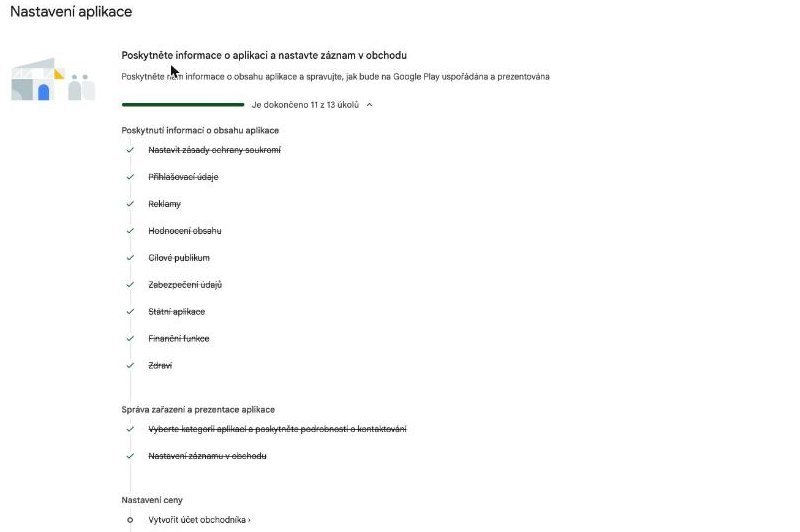
App content declarations
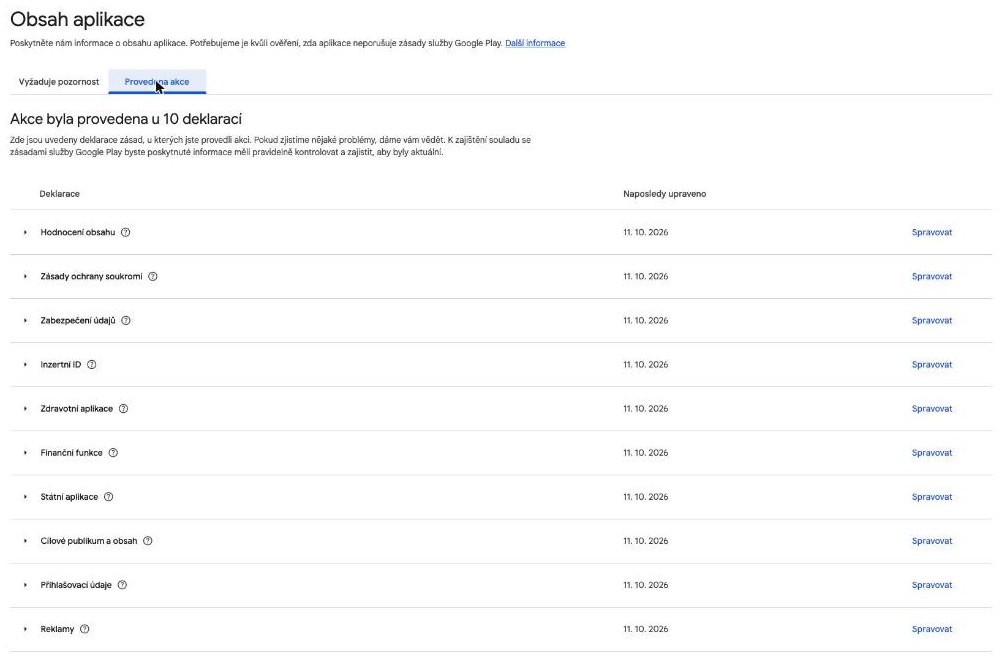
Policy and programs → App content holds ten declarations. Each is a short form; together they decide your age rating and which policies apply. The answers for an offline utility without accounts or ads:
| Declaration | Answer | Note |
|---|---|---|
| Privacy policy | Public HTTPS URL | Must load when you save the form, see section 7. |
| App access | All functionality available without special access | No login, so no test account for reviewers. |
| Ads | No ads | |
| Content rating | IARC questionnaire, “All other app types”, all answers No | Result: PEGI 3. |
| Target audience | 18 and over | Choosing children's age groups brings the Families policy into play. |
| Advertising ID | Not used | Check your dependencies; some SDKs read it. |
| News, government, financial features, health | No | Each is its own small form. |
| Data safety | See section 4 | The one that deserves real care. |
Data safety: declare what your SDKs collect
The tempting answer for an app that keeps everything on the device is “we collect nothing”. On Android that is usually wrong. You answer for every SDK in the bundle, not just your own code. Google Maps SDK for Android, for example, collects crash logs, diagnostics and a device identifier, and Google's own documentation says the app developer is responsible for declaring it. An undeclared SDK is a common reason for rejection.
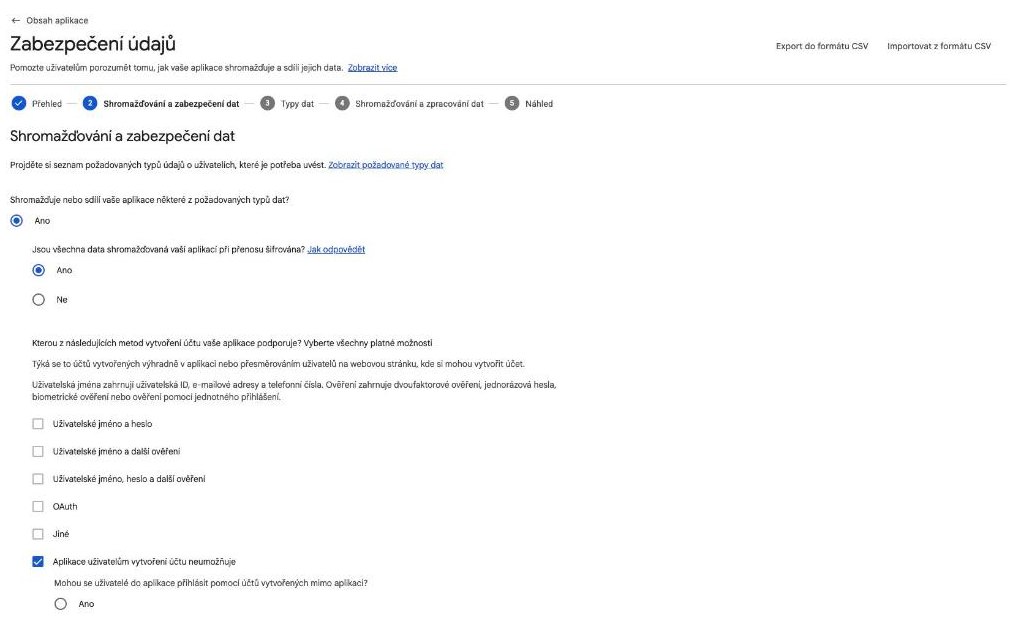
For each data type, state whether it is collected or shared, whether it is processed only temporarily, whether it is optional, and why. In this app:
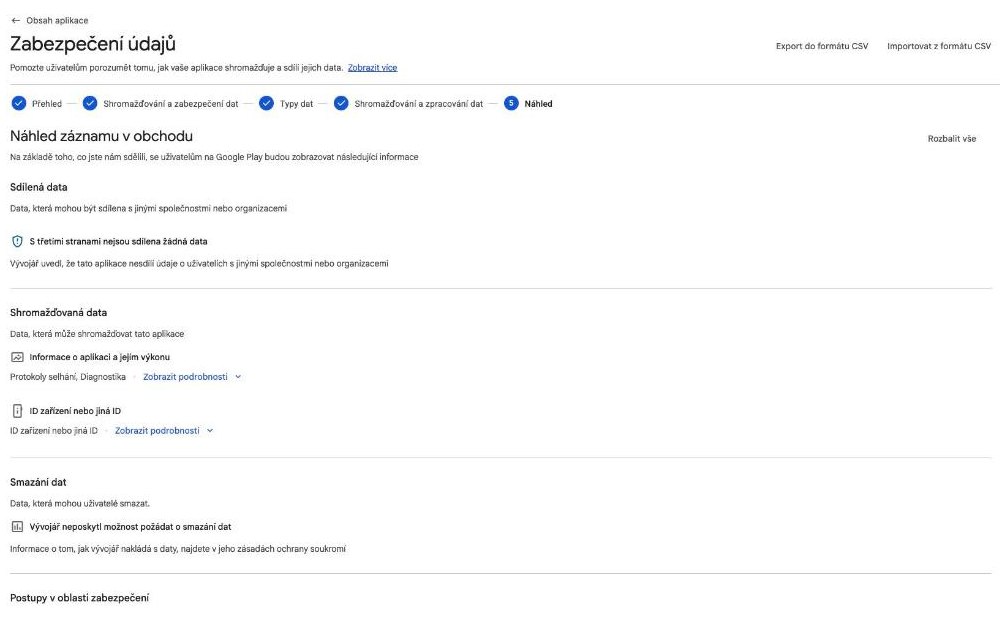
- Precise location: collected, not shared, processed ephemerally, optional, for app functionality (saving a parking spot).
- Crash logs and diagnostics: collected by the Maps SDK, not shared, for analytics.
- Device or other IDs: collected by the Maps SDK, not shared, for analytics.
- Everything else (name, e-mail, contacts, photos, files, financial data): not collected.
The store listing
Grow users → Store presence → Store listings → Default store listing. The text limits are strict: name 30 characters, short description 80, full description 4,000. The required graphics:
| Asset | Size | Note |
|---|---|---|
| App icon | 512 × 512, PNG or JPEG, up to 1 MB | A full square; Google applies the mask. |
| Feature graphic | 1024 × 500, up to 15 MB | Required. Shown above the screenshots and in promotions. |
| Phone screenshots | 2 to 8, 16:9 or 9:16, 320–3840 px per side | 1080 × 1920 JPEG works well. |
| Tablet, Chromebook, XR | Optional | Skip unless you target them. |
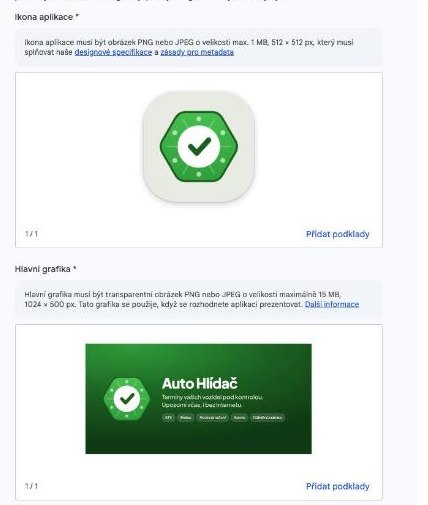
Files are uploaded into an asset library first and then assigned to fields. The library filters by the field it was opened from, so 9:16 screenshots appear as unusable when you open the library from the icon field. That is the filter, not a problem with your images.
Category and contact details (e-mail, website) live separately, under Store settings.
The AI-generated assets declaration
New in 2026: after Next on the store listing, a review step asks whether any asset was generated or modified with AI. The background is regulation (the EU AI Act among others) that requires labelling AI-generated content in some situations. Assets you declare get an AI label on Google Play.
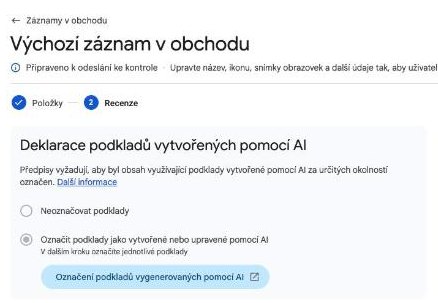
The question is about the image itself, not about how the app was built. A useful test: could someone mistake the image for something real or hand-made when it was produced by an AI model?
- Label a logo or icon designed with an AI tool, and graphics built on it, such as a feature graphic that shows that logo.
- Do not label real screenshots of the running app, even if AI helped write the code, and even if a script framed them with a background and a caption. They show what users actually get.
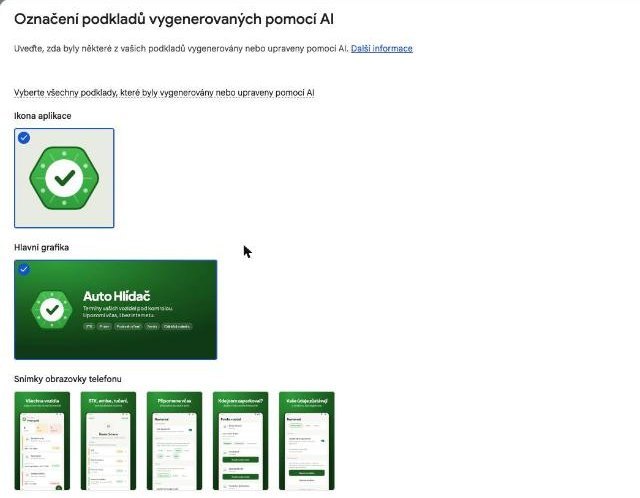
The declaration belongs to the asset. When you replace an image later, declare the new one again.
A privacy policy URL that actually loads
Play Console fetches the privacy policy URL when you save the form, and reviewers open it again. It must be a public page over HTTPS with a valid certificate, not a PDF in a shared drive.
Internal testing
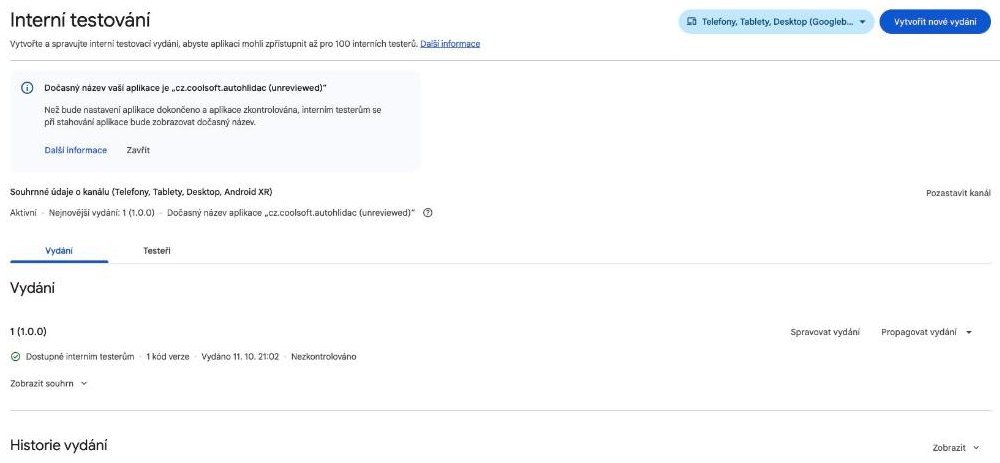
Internal testing is the fastest way to get the real Play build onto a phone: up to 100 testers, no review, available within minutes, usually under an hour.
- Testing → Internal testing → Testers: pick or create an e-mail list and save. A paid app has an automatically generated license testers list, which already contains the account owner; license testers install paid apps for free.
- Create new release: upload the
.aab. The release name is filled in from the version (“1 (1.0.0)”). Add release notes in the<cs-CZ>…</cs-CZ>language tags. - Next shows errors and warnings. “No deobfuscation file is associated with this App Bundle” is harmless; it only matters for readable crash traces from obfuscated code.
- Save and publish, confirm, then send testers the link from the Testers tab (
https://play.google.com/apps/internaltest/…).
Test what an emulator cannot show you: notifications on a real device over a night, location and maps, and backup and restore across two phones.
App signing and restricted API keys
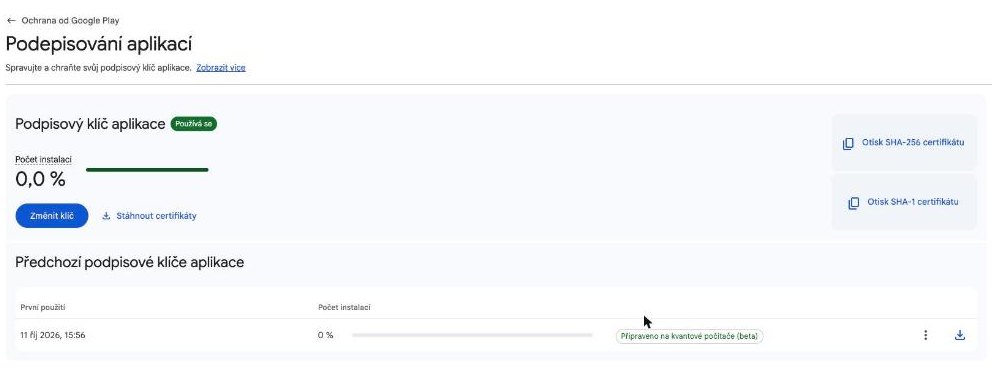
The first upload enrols the app in Play App Signing. You sign with your upload key; Google re-signs what users download with an app signing key that it generates and keeps. The page has moved: it is now under Protect with Play → App signing (the old App integrity entry only points there).
Price, payouts and tax
The price is set in Monetize with Play → App pricing, which unlocks only after the merchant account exists. Google converts the price to other currencies.
- Service fee. Google typically keeps 15 % of the first USD 1 million of earnings each year, 30 % above that. It is deducted before payout; there is no invoice to pay.
- VAT on sales to consumers in the EU is collected and paid by Google, which acts as the seller towards the customer. You do not handle VAT per purchase.
- Payouts arrive once a month as a single transfer, with monthly earnings reports in Play Console as your accounting records.
- Your side is income tax on the payouts and, inside the EU, VAT reporting of the service you supply to Google's Irish entity (typically a recapitulative statement, also for businesses registered only as “identified persons”).
Towards production and review
With the dashboard complete, the remaining path is: closed testing (12 testers for 14 days on newer personal accounts), then Production → Countries/regions and a production release built from the tested bundle, then Publishing overview → Send for review. The first review can take up to a week. Turn on Managed publishing if the release should go live only when you say so, for example together with the iOS version.
Checklist
- Account type chosen knowingly; closed-testing rule checked for personal accounts.
- Free or paid decided knowingly: paid can become free later, free can never become paid.
- All ten App content declarations completed.
- Data safety covers every SDK, not just your own code, and matches the privacy policy.
- Icon 512 × 512, feature graphic 1024 × 500 and 2–8 phone screenshots uploaded.
- AI-generated assets declared individually; real screenshots left unlabelled.
- Privacy policy and support pages load over HTTPS with a valid certificate.
- Internal test published and installed from Google Play on a real device.
- Both SHA-1 fingerprints (upload and app signing) added to restricted API keys.
- Merchant account created, price set, tax treatment agreed with your accountant.
There's nothing here.
No comments have been posted here yet.